SheetMark / Spreadsheet printing guide
Print barcode labels from Excel.
Put your product codes, names, and quantities on A4 or US Letter label sheets. Save your Excel worksheet as CSV, or paste its table into SheetMark, then check a free plain-paper proof before printing your stock labels.
Free: up to 100 labels per job. No account or card needed. Label data stays on your device. Native .xlsx files are not supported.
1. Prepare one row per product.
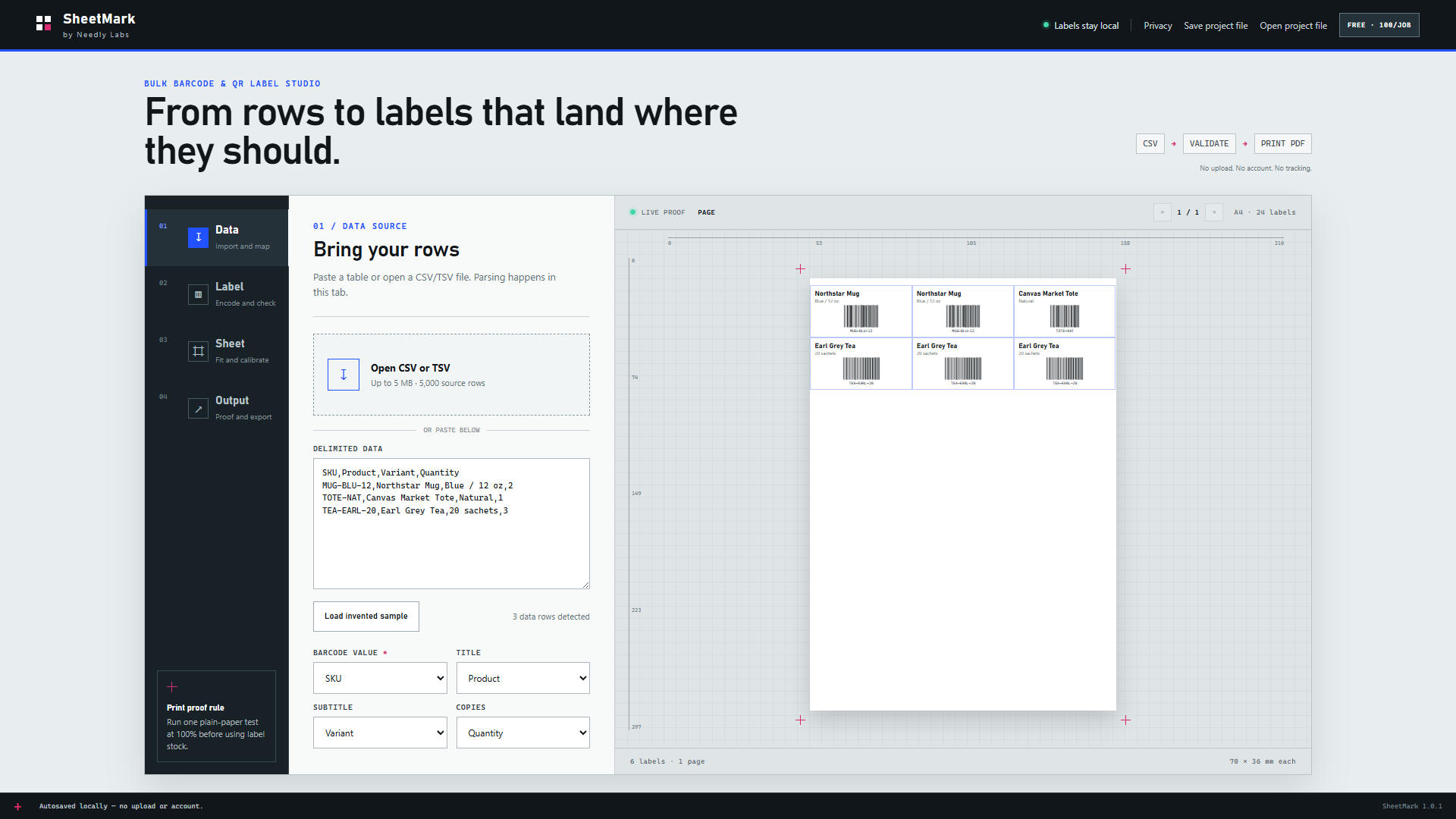
Include a header row and separate columns for the barcode value, product title, optional variant, and quantity. Use quantities for repeated copies instead of duplicating the product row.
| SKU | Product | Variant | Quantity |
|---|---|---|---|
| MUG-BLU-12 | Northstar Mug | Blue / 12 oz | 2 |
| TOTE-NAT | Canvas Market Tote | Natural | 1 |
| TEA-EARL-20 | Earl Grey Tea | 20 sachets | 3 |
In Excel, select the cells including the headings, copy them, and paste into SheetMark’s Delimited data box. Alternatively, save a CSV copy of the worksheet and chooseOpen CSV or TSV. Keep your original workbook: CSV does not retain all workbook features. See Microsoft’s CSV export instructions.
Keep barcode values as text in Excel before entering or importing them. If a code is 00123, confirm that all five characters reach SheetMark. Changing the cell format after Excel removed digits cannot recover the original code. Microsoft explains leading zeros and long numbers.
2. Map the columns. Check the codes.
For the sample, choose SKU for Barcode value,Product for Title, Variant for Subtitle, and Quantity for Copies. Review each selection even when SheetMark suggests it automatically.
Choose Code 128 for these sample SKUs. If your products already have EAN or UPC identifiers, select their matching format and check the validation results. SheetMark also supports QR, Data Matrix, and PDF417. Fix invalid included rows before exporting.
SheetMark renders the values you provide. It does not assign registered retail identifiers or connect codes to an inventory system. Confirm that your scanner and receiving system expect the selected format and value.
3. Match the whole sheet geometry.
Choose Sheet preset to match your paper and label grid. Label width and height alone are not enough: compare margins, gaps, columns, and rows with your stock’s specification.
| Paper / labels | Label size | Columns × rows | Left / top margin | Horizontal / vertical gap |
|---|---|---|---|---|
| A4 · 24 labels | 70 × 36 mm | 3 × 8 | 0 / 4.5 | 0 / 0 |
| A4 · 21 labels | 63.5 × 38.1 mm | 3 × 7 | 7.25 / 15.15 | 2.5 / 0 |
| A4 · 14 labels | 99.1 × 38.1 mm | 2 × 7 | 5.9 / 15.15 | 0 / 0 |
| US Letter · 30 labels | 2⅝ × 1 in | 3 × 10 | 4.7625 / 12.7 | 3.175 / 0 |
A4 is 210 × 297 mm; US Letter is 215.9 × 279.4 mm. A separate 4 × 6 in thermal preset prints one label per PDF page. Custom sheet dimensions are not available. SheetMark is not affiliated with or certified by Avery, and a matching size does not guarantee alignment on your printer.
On a partly used sheet, set First empty positionand check the preview: positions before it remain blank on the first page. Later pages start with a fresh sheet. Follow your printer and stock manufacturer’s instructions for refeeding sheets.
4. Prove the alignment before using labels.
- Choose Download calibration proof and open the PDF in your usual viewer.
- Select the matching paper size and print on plain paper at 100% / Actual size. Turn off Fit or Shrink to page.
- Compare the printed grid with your label sheet, including the first and last rows and columns.
- If the whole grid is shifted, make a small Move X orMove Y correction. If the error grows across the page, recheck paper size and print scaling before making small Scale X/Y corrections.
- Export the sample label PDF and scan representative printed codes with the scanner you will use. Check the decoded values before a larger run.
Printer margins, feed variation, and stock tolerances affect the result. Calibration can correct small differences; it cannot make an incompatible label grid fit. Physical printing happens through your PDF viewer, under your control.
5. Repeat the run when new stock arrives.
Choose Save project file to keep the mapped rows, stock, and calibration together. Open that project for the next run, update the rows or copies you need, and review the preview again. Projects are local files; they do not sync automatically.
When Windows Pro earns its place
30 products × 20 copies = 600 labels.
That is one Pro job and 25 fresh A4 24-label sheets, starting at position 1. Free would require six jobs of 100 labels. Upgrade when keeping a larger repeat run together is useful to you.
Free supports up to 100 labels per job in the browser or Windows app. Optional Windows Pro costs$39 USD one-time and supports up to2,000 labels per job on three Windows devices, with no subscription or automatic renewal. Applicable tax is shown before payment.
Both editions allow at most 250 distinct codes and 200 PDF pages per job. The page cap limits Pro to200 labels on 4 × 6 stock. Pro needs internet for activation and periodic validation, with a 30-day offline grace after successful validation.
To move a successful browser proof into Windows, save the project file in the web app and choose Open project filein Windows. Pro activates in the Windows app.
If the first import or print looks wrong
My CSV appears as one column.
The separator may be a semicolon. In the current web app (1.0.2), choose Semicolon under Column separator and review the mapping. Windows Store 1.0.1 supports comma CSV and tab-separated data; copy the cells including headings from Excel and paste them there, or prepare the project in the web app and transfer its project file to Windows.
My barcode lost its leading zeros.
Compare the imported value with your original identifier. SheetMark keeps source text but cannot recover digits Excel already removed. Correct the source from the original product record, keep it as text, and import again.
The bottom labels drift out of alignment.
Recheck the PDF paper size, actual-size printing, stock margins, and row gaps. A growing error is different from a constant shift. Start from an unscaled proof, then adjust calibration in small increments and print another plain-paper test.
Why is my job blocked below 2,000 labels?
The distinct-code and page caps still apply to Pro, and invalid included rows block export. Check the job summary and validation messages. A 4 × 6 layout reaches the 200-page cap at 200 labels.